Okay, so it’s not quite that bad but it’s not too far off. 😉
Monthly Archives: September 2011
Demanding Game

Oh no! I don’t know if my my computer with a quad core 3.22 GHz processor, 16 gigabytes of RAM, and dual GTX 470 video cards will be able to handle it!
Code Snippet: Add A Link To Latest Post To WordPress Nav Menu
Someone on #wordpress IRC support channel was trying to add link to their latest blog post to their WordPress navigation menu, so I threw together a few lines of code to help them accomplish this.
[code language=”php”]// Front end only, don’t hack on the settings page
if ( ! is_admin() ) {
// Hook in early to modify the menu
// This is before the CSS "selected" classes are calculated
add_filter( ‘wp_get_nav_menu_items’, ‘replace_placeholder_nav_menu_item_with_latest_post’, 10, 3 );
}
// Replaces a custom URL placeholder with the URL to the latest post
function replace_placeholder_nav_menu_item_with_latest_post( $items, $menu, $args ) {
// Loop through the menu items looking for placeholder(s)
foreach ( $items as $item ) {
// Is this the placeholder we’re looking for?
if ( ‘#latestpost’ != $item->url )
continue;
// Get the latest post
$latestpost = get_posts( array(
‘numberposts’ => 1,
) );
if ( empty( $latestpost ) )
continue;
// Replace the placeholder with the real URL
$item->url = get_permalink( $latestpost[0]->ID );
}
// Return the modified (or maybe unmodified) menu items array
return $items;
}[/code]
Place the above code in a plugin or just in your theme’s functions.php file.
Create a new “Custom Link” menu item where the URL is #latestpost (which will act as a placeholder and target for the code). You can title the item whatever you please. This code will then find that menu item (by looking for the placeholder URL) and then replace it’s URL with that of the latest post’s URL. Since the filter is before the code that adds the selected CSS classes runs, the menu highlighting will even work. When you visit the latest post on your blog, this menu item will light up.
Rather simple and elegant. You gotta love WordPress hooks.
Whoever Said Chrome Used Less Memory Than Firefox Was Lying
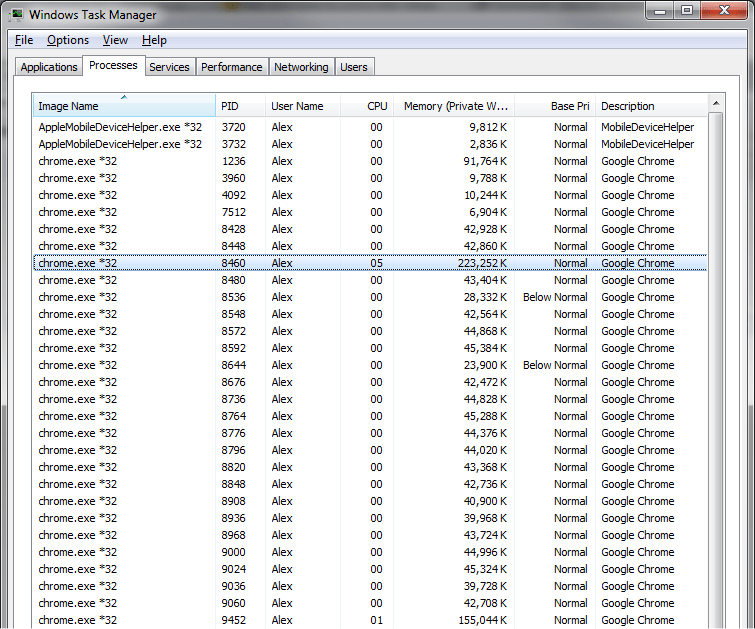
Okay, so it has been open for a week or two but come on. You really need 44MB of RAM to display a single tab that has only ever displayed a single webpage?
Not that it really matters since my desktop has 16 gigabytes of RAM (10.5 of which is in use), but still…
“What Does It Feel Like To Fly Over Planet Earth?”
A cool video made up of a series of time-lapse images taken from the International Space Station:
Here’s the description from the original choppy version of the video:
A time-lapse taken from the front of the International Space Station as it orbits our planet at night. This movie begins over the Pacific Ocean and continues over North and South America before entering daylight near Antarctica. Visible cities, countries and landmarks include (in order) Vancouver Island, Victoria, Vancouver, Seattle, Portland, San Francisco, Los Angeles. Phoenix. Multiple cities in Texas, New Mexico and Mexico. Mexico City, the Gulf of Mexico, the Yucatan Peninsula, El Salvador, Lightning in the Pacific Ocean, Guatemala, Panama, Columbia, Ecuador, Peru, Chile, Lake Titicaca, and the Amazon. Also visible is the earths ionosphere (thin yellow line), a satellite (55sec) and the stars of our galaxy.
So beautiful.
Translating WordPress Plugin Details
Plugin authors: did you know that you can allow translators to localize the plugin details that show up in the plugins list in the WordPress administration area? Your plugin’s name, description, and so forth? Well you can! It’s actually really simple to do and all you need to do is add one or two additional plugin headers to your file.
The first is Text Domain and this is the text domain for your plugin, i.e. the first argument that you are passing to load_plugin_textdomain().
The second one is Domain Path and is optional. It’s only needed if you store your translation files in a subfolder inside of your plugin’s folder.
Here’s an example load_plugin_textdomain() call from one of my newest plugins:
[code language=”php” light=”1″]load_plugin_textdomain(
‘add-descendants-as-submenu-items’,
false,
dirname( plugin_basename( __FILE__ ) ) . ‘/localization/’
);[/code]
That loads translation files from a subfolder called “localization” inside of my plugin’s folder. This turns into the following plugin header:
[code highlight=”8,9″]Plugin Name: Add Descendants As Submenu Items
Plugin URI: http://www.viper007bond.com/wordpress-plugins/add-descendants-as-submenu-items/
Description: Automatically all of a nav menu item’s descendants as submenu items. Designed for pages but will work with any hierarchical post type or taxonomy.
Version: 1.1.0
Author: Alex Mills (Viper007Bond)
Author URI: http://www.viper007bond.com/
Text Domain: add-descendants-as-submenu-items
Domain Path: /localization/[/code]
An extra line break isn’t needed nor is the extra spacing but I added both just for aesthetic reasons.
And that’s it! WordPress will then attempt to translate the plugin’s name, URI, description, author, author URI, and version fields. I personally only include the plugin’s name and description in my translation template files though as I don’t feel translators need to localize the other fields.
If you need help generating a translation template file for your plugin, log into WordPress.org and then visit the “Admin” tab on your plugin’s page on WordPress.org. You can generate a POT file for your plugin there.
Video Game In A Box
New Plugin: Add Descendants As Submenu Items
When I created the navigation menu at the top of my site using the menu feature in WordPress (Appearance → Menus), I didn’t want to have to maintain anything but the top-level menu items. When I released a new plugin and created a page for it, I didn’t want to have to go into my menu UI and add it there too. So instead I wrote this plugin.
Add Descendants As Submenu Items adds a checkbox to each menu item that is of a hierarchical post type (i.e. pages). Checking this box will automatically display all descendants as submenu items on the front end of your site. You can see it in action at the top of my site — I only configured the top level menu items and everything that shows up when you hover over them has been added by my plugin rather than manually by me.
-

- An example menu and the checkbox this plugin adds
-

- These submenu items have been added by the plugin
For more details and to download the plugin, check out the plugin’s homepage.
Teaser For A New WordPress Nav Menu Plugin
Just a little something I’ve been working on. 🙂

(The checkbox and the text next to it is what my plugin is adding.)
Theme Switch In Progress
I’m currently in the process of switching WordPress themes. As such, you may find occasional bugs or missing features here while I sort out the issues. 🙂
Feel free to report any issues as comments on this post.